Cutting optimizer for sheet goods: melamine, MDF and plywood
- Price
- $15 USD/mo
- Users included
- 1
- Included in
- Workshop · Professional Suite
- Runs in
- Browser, nothing to install
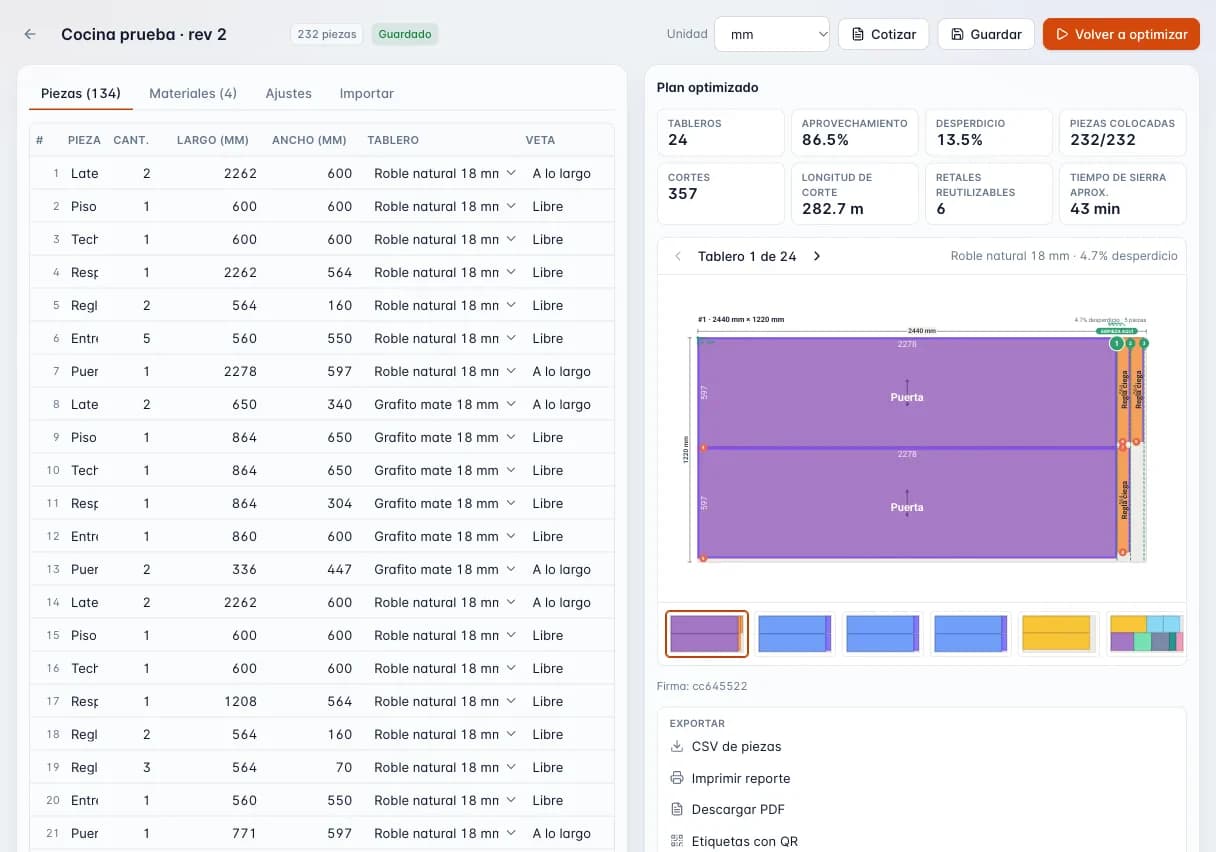
- 1Cut list: quantity, length, width, board and grain for every part.
- 2Result: 24 sheets, 86.5% yield, 357 cuts, 6 reusable offcuts.
- 3Diagram of every sheet (2440 × 1220 mm) with each part's size.
- 4Thumbnails to step through all 24 sheets.
- 5Export: parts CSV, printed report, PDF and QR labels.
What laying out sheets by hand costs you
- Buying an extra sheet or two because the layout was sketched on scrap or done in your head.
- Doors and drawer fronts cut against the grain and recut from a new sheet.
- Good offcuts leaning against the wall because nobody remembers what size they are.
- Cut lists rewritten by hand for the panel saw, with a typo that costs a part.
- Parts piling up at the edge bander and assembly bench with no way to tell which cabinet they belong to.
What the Cut module does
- Guillotine or nesting
- Choose guillotine cuts for a panel saw or table saw, limited to 2 or 3 stages, or free-form nesting for a CNC router.
- Optimization goals
- Optimize for least waste, fewest cuts, fewest sheets, best offcuts, lowest cost or fewest distinct patterns, and set how hard the solver works.
- Grain by part and by material
- Set grain along the length, across the width or none for each material and each part, and choose which parts may rotate. Doors and fronts keep the grain running the right way.
- Kerf and edge trim per material
- Enter the blade kerf and the edge trim for each sheet type, and override them for a single job when needed.
- Mixed materials in one job
- Up to 100 materials and thicknesses per job: 3/4 in melamine, MDF, plywood and 1/4 in backs in one run.
- Offcuts that get used
- Usable offcuts are saved with their size and the optimizer reaches for them before opening a new sheet. Mark them used once they are cut (paid plans).
- Edge banding per side
- Mark banding on the top, bottom, left and right of each part. Band thickness is deducted from the cut size, and banding footage flows to quoting and inventory.
- QR part labels
- One label per part with name, size, material, thickness, job, sheet number, cabinet and banding marks per side, printed from the browser (paid plans).
- CNC files
- Export DXF, G-code (.nc), Homag MPR and Biesse CIX for your router or machining center (paid plans).
- PDF report, CSV and sheet size finder
- A printable report and PDF (watermarked on Free), CSV export, and a finder that compares sheet sizes before you buy (paid plans).
From cut list to layout in four steps
- 01
Enter or paste your parts
Type them in, paste from a spreadsheet or upload a .csv, .tsv or .txt file. English or Spanish headers, fractions and decimals all work.
- 02
Set up your sheets
Sheet size (a 49 × 97 in sheet or a metric 2440 × 1830 mm board), thickness, kerf, edge trim and grain. Work in inches, fractional inches, mm or cm.
- 03
Pick a mode and a goal
Guillotine or nesting, the goal you care about most, and whether to use your offcuts first.
- 04
Optimize and send it to the shop
Check each sheet layout, print the report and part labels, and export the file for your CNC if you run one.
Specs
- Units
- Fractional inches, decimal inches, millimeters and centimeters
- Materials
- Melamine, MDF, plywood and any sheet good you add; up to 100 materials and thicknesses per job
- Cutting modes
- Guillotine (2- or 3-stage limit) and nesting
- Goals
- Least waste, fewest cuts, fewest sheets, best offcuts, lowest cost, fewest patterns
- Grain
- None, lengthwise or crosswise, per material and per part, with optional rotation
- Kerf and trim
- Per material, with per-job overrides
- Import
- Paste text or upload .csv, .tsv or .txt; English or Spanish headers; fractions and decimal commas accepted
- Export
- CSV, PDF and printable report; DXF, G-code (.nc), Homag MPR and Biesse CIX on paid plans
- Labels
- QR part labels printed from the browser (paid plans)
- Free plan
- 50 parts per run, 3 saved projects, 1 user; watermarked PDF
- Paid plans
- No limit on parts per run or saved projects
- Platform
- Browser (Chrome, Edge, Safari, Firefox) on a computer, tablet or phone; the optimizer runs in your browser
How it connects to the rest of the shop
Cabinet design
Send to Cut moves the cut list from the kitchen, closet or vanity you designed straight into the optimizer, with sizes, materials and banding, no retyping.
Quoting
A cut job can fill in a quote, so sheets, banding footage and material come from the real cut list instead of a guess.
Inventory
Calculated edge banding footage feeds inventory. Offcuts stay in Cut, where the optimizer uses them first.
Production
Once the quote is accepted it becomes a production order, and the shop tracks it through stages like Cutting, Edge banding and Assembly.
Who it's for
- Shops running a panel saw
- Clear guillotine layouts per sheet so the operator isn't improvising and no part goes missing.
- Shops that buy cut-to-size
- Know exactly how many sheets to order and hand the supplier a clean cut list or a PDF layout.
- CNC router shops
- Nested layouts plus DXF, G-code, MPR or CIX files to send to the machine.
- Kitchen and closet makers
- Run melamine, MDF and backs in one job, keep offcuts in play and label every part by cabinet.
Plan Cut
$15 USD/mo
Also included in Workshop and Professional Suite.
Frequently asked questions
Can I use the optimizer for free?
Yes. The free optimizer works without signing up for jobs up to 50 parts. A free account saves up to 3 projects for 1 user.
Does it handle grain direction?
Yes. Set the grain on each sheet material (lengthwise, crosswise or none) and on each part, and choose which parts may rotate. The layout follows those rules.
Does it account for kerf and edge trim?
Yes. Enter the blade kerf and edge trim per material, and override them for a specific job. Both are deducted on every cut.
What happens to offcuts?
Usable offcuts are saved with their size, and with the option on, the optimizer uses them before starting a new sheet. Marking offcuts as used is on paid plans.
Can it export files for my CNC?
Yes, on paid plans: DXF, G-code (.nc), Homag MPR and Biesse CIX. Use nesting mode for a router and guillotine mode for a panel saw.
Can I import my cut list from Excel?
Yes. Copy the columns and paste them in, or save the sheet as CSV and upload it (.tsv and .txt work too). English or Spanish headers are fine. Direct .xlsx upload isn't supported yet.
Does it work on a phone or a Mac?
Yes. It runs in Chrome, Edge, Safari or Firefox on any computer, Mac included, tablet or phone. Nothing to install, though you do need an internet connection.
Does it connect to design and quoting?
Yes. Design sends its cut list straight to Cut, and a cut job can fill in a quote with sheets and banding footage.
Which plan includes the optimizer?
Free includes the optimizer with a parts limit. The Cut, Workshop and Professional Suite plans include the full module: offcuts, labels, watermark-free PDF, CNC files and the sheet size finder. The Design plan includes optimization and saved projects with no parts limit.
Cut better starting with your next job
Create an account and use the full Workshop plan for 14 days. No card; afterwards you drop to the Free plan, not a lockout.